LettermintLettermint
  • Knowledge base
  • Community
  • Changelog
  • Support
  • Documentation
  • Sending API
  • Team API
Getting started
Guides
Platform
    Projects & Routes
      IntroductionRoutesInbound Mail
    Emails
    Domains
    Webhooks
    Teams
Resources
Projects & Routes

Inbound Mail

Overview

Inbound routes allow you to receive emails and process them programmatically via webhooks. Every inbound route gets a unique email address, and you can optionally configure custom domains for branded receiving addresses.

Inbound routes are available on Starter plans and above. Check your plan's feature availability in the dashboard.

How Inbound Mail Works

  1. Email arrives at your inbound route address
  2. Spam filtering checks the message against your configured threshold
  3. Email parsing extracts headers, body, attachments, and metadata
  4. Webhook delivery sends the complete email data to your endpoint
  5. Your application processes the email and takes action

Getting Started

Step 1: Create an Inbound Route

  1. Navigate to your project in the dashboard
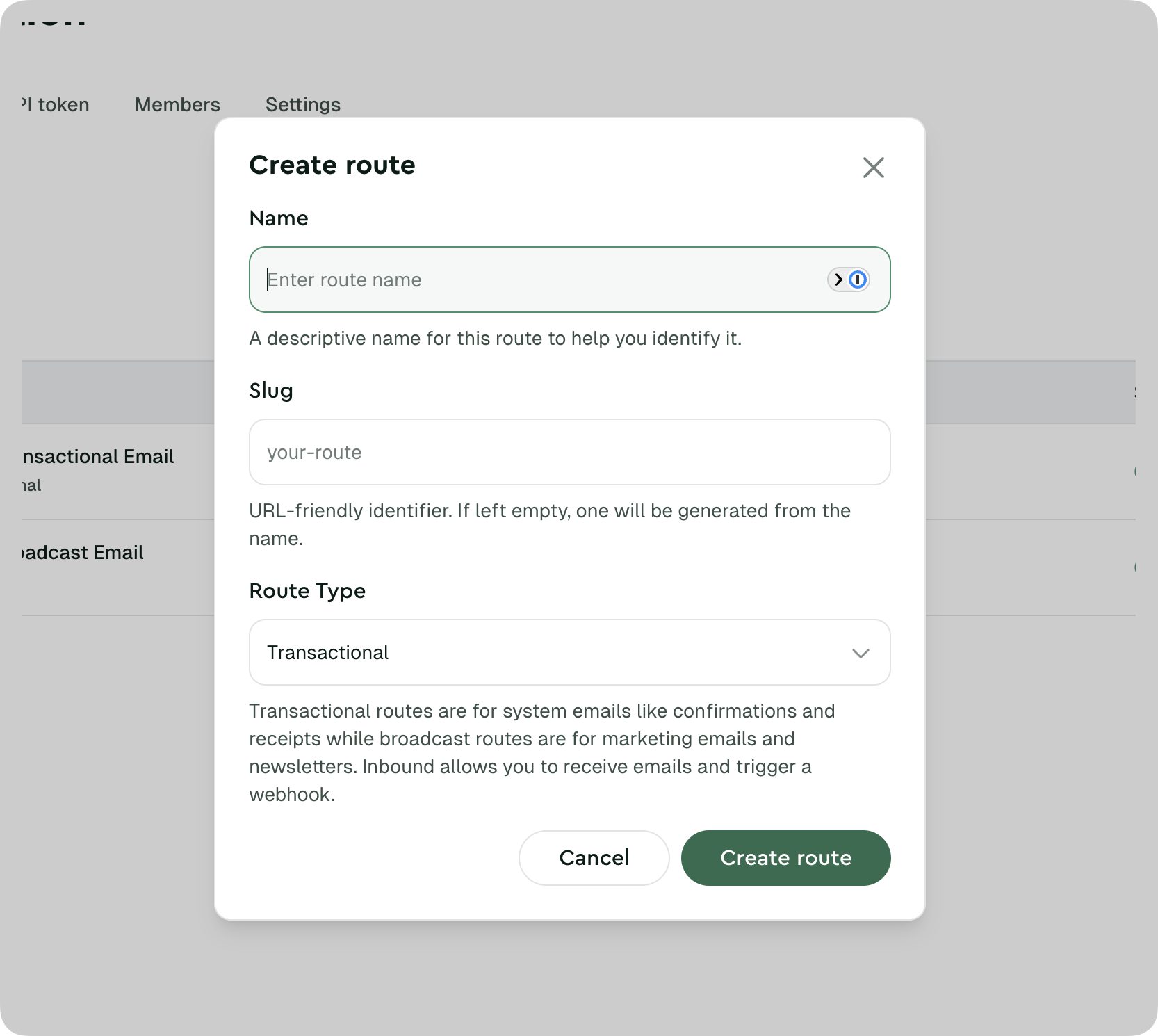
  2. Go to Routes → Create Route
  3. Select Inbound as the route type
  4. Configure your spam filtering preferences
  5. Save the route

Step 2: Get Your Inbound Address

Once created, your route receives a unique email address:

Code
{route-uuid-without-dashes}@inbound.lettermint.co

Example: a1b2c3d4e5f67890abcdef1234567890@inbound.lettermint.co

You can find your inbound address on the route details page in your dashboard. Copy it to start receiving emails immediately.

Step 3: Configure Webhooks

To process received emails, set up a webhook endpoint:

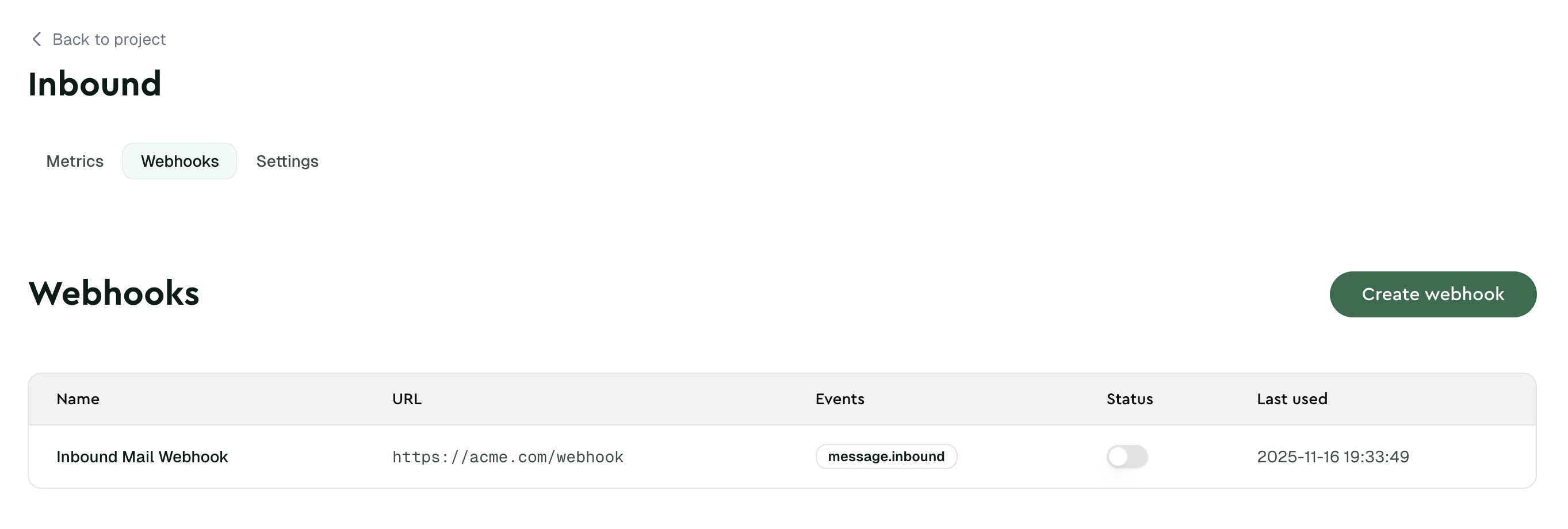
  1. In your route settings, go to Webhooks
  2. Create a new webhook
  3. Enter your endpoint URL
  4. Save and test the webhook

See Webhook Events for the complete payload structure.

Custom Domains

Use your own domain for inbound email addresses instead of the default @inbound.lettermint.co domain. Custom domains act as a catch-all — any email sent to your domain is routed to your webhook, regardless of what comes before the @.

For example, with the custom domain support.acme.com, all of these addresses deliver to the same inbound route:

Code
help@support.acme.com billing@support.acme.com anything-you-want@support.acme.com

This makes custom domains ideal for support systems, reply tracking, and any workflow where you need flexible receiving addresses. Combined with subaddress support, you can use + tags to route and categorize emails within your application.

Setting Up a Custom Domain

Configure custom domain

In your inbound route settings, enter your desired custom domain (e.g., support.acme.com)

Add MX record

Add an MX record to your DNS pointing to Lettermint's inbound servers:

TypeHostnamePriorityValue
MXsupport.acme.com10inbound.lettermint.co

Verify domain

Return to your route settings and click Verify MX Record. Verification typically completes within minutes.

Start receiving

Once verified, emails sent to anything@support.acme.com will be routed to your webhook.

Custom domain MX records must point exclusively to Lettermint. If you need to receive emails at the same domain through multiple providers, use a subdomain like inbound.yourdomain.com.

DNS Propagation

DNS changes can take time to propagate globally:

TerminalCode
# Check if your MX record is set correctly dig MX support.acme.com # Expected output should show: # support.acme.com. 300 IN MX 10 inbound.lettermint.co.

Troubleshooting MX verification:

  • DNS changes typically propagate in 5-60 minutes
  • Some DNS providers cache records for up to 24 hours
  • Ensure your MX record points to inbound.lettermint.co
  • Check that the hostname is correct (not doubled like support.acme.com.acme.com)

Spam Filtering

Lettermint automatically scans all inbound emails using Rspamd spam filtering. You can configure how strictly emails are filtered.

Spam Threshold

The spam threshold determines what happens to messages based on their spam score:

threshold (number, default: 5.0)

Spam score threshold. Messages with a higher score are marked as spam.

  • 5.0 (default): Standard filtering, rejects obvious spam
  • 10.0: Lenient, allows most emails through
  • 2.0: Strict, may flag legitimate emails as spam
  • null: Spam filtering OFF, accepts all emails, but will still scan and report spam scores

Setting the threshold to null (OFF) will accept all emails including obvious spam. Only use this for testing or when you implement your own spam filtering.

Spam Detection Results

Every inbound webhook includes spam scoring information:

Code
{ "is_spam": false, "spam_score": 2.4, "spam_symbols": [ { "name": "DKIM_VALID", "score": -0.1, "options": [], "description": "Message has valid DKIM signature" }, { "name": "SPF_PASS", "score": -0.1, "options": [], "description": "SPF check passed" }, { "name": "BAYES_HAM", "score": -3.0, "options": [], "description": "Bayesian classifier identified message as non-spam" } ] }

Your application can decide how to handle emails based on these values.

Attachment Delivery Mode

Choose how attachments are delivered in webhook payloads:

attachment_delivery (string, default: "inline")

How attachments are delivered in webhooks.

  • inline (default): Attachments include base64-encoded content in the payload
  • url: Attachments include a signed url for downloading (no content field)

Inline Mode (Default)

Attachments are embedded directly in the webhook payload as base64-encoded content:

Code
{ "attachments": [{ "filename": "document.pdf", "content": "JVBERi0xLjQK...", "url": null, "content_type": "application/pdf", "size": 45678, "content_id": null }] }

URL Mode

Attachments are stored and a signed download URL is provided instead:

Code
{ "attachments": [{ "filename": "document.pdf", "content": null, "url": "https://storage.lettermint.co/inbound/attachments/abc123/0?expires=...&signature=...", "expires_at": "2025-10-30T14:30:00+00:00", "content_type": "application/pdf", "size": 45678, "content_id": null }] }

URL expiration: Download URLs are valid for 28 days (matching message retention). The expires_at field contains an ISO 8601 timestamp indicating exactly when the URL becomes invalid. After expiration, the attachment is no longer accessible.

When to Use URL Mode

  • Large attachments: Reduces webhook payload size significantly
  • Deferred processing: Download attachments only when needed
  • Bandwidth optimization: Avoid transferring attachments you may not need

Configuration

Configure via the dashboard in your inbound route settings, or via the Team API:

TerminalCode
curl -X PUT "https://api.lettermint.co/v1/routes/{routeId}" \ -H "Authorization: Bearer lm_team_xxx" \ -H "Content-Type: application/json" \ -d '{ "inbound_settings": { "attachment_delivery": "url" } }'

Subaddress Support

Lettermint supports email subaddressing (also known as plus addressing) for routing and filtering:

Code
johndoemail+lm@support.acme.com └──┬──┘└┬┘ user tag

Use Cases

Support ticket categorization:

Code
support+billing@acme.com → Route to billing team support+technical@acme.com → Route to tech support

User identification:

Code
orders+user123@acme.com → Link to user account #123

A/B testing email addresses:

Code
newsletter+variant-a@acme.com newsletter+variant-b@acme.com

Webhook Payload

Subaddresses are parsed and included in the webhook payload:

Code
{ "from": { "email": "customer@example.com", "subaddress": null }, "recipient": "support+billing@acme.com", "subaddress": "billing" }

Webhook Payload

When an email is received, Lettermint sends a message.inbound webhook with complete email data.

Example Payload

Code
{ "id": "abcdf1234-asdf", "event": "message.inbound", "created_at": "2025-10-02T14:30:00.000Z", "data": { "route": "support-inbox", "message_id": "msg_a1b2c3d4", "envelope": { "remote_ip": "203.0.113.45", "remote_hostname": "mail.example.com", "helo": "mail.example.com", "mail_from": "customer@example.com" }, "from": { "email": "customer@example.com", "name": "John Doe", "subaddress": null }, "to": [ { "email": "support@acme.com", "name": null, "subaddress": null } ], "cc": [], "recipient": "support@acme.com", "subaddress": null, "reply_to": "customer@example.com", "subject": "Question about my order", "date": "2025-10-02T14:30:00.000Z", "body": { "text": "Hi, I have a question...", "html": "<p>Hi, I have a question...</p>" }, "tag": null, "headers": [ { "name": "Message-ID", "value": "<abc123@mail.example.com>" } ], "attachments": [ { "filename": "receipt.pdf", "content": "JVBERi0xLjQKJ...", "url": null, "content_type": "application/pdf", "size": 45678, "content_id": null } ], "is_spam": false, "spam_score": 1.2, "spam_symbols": [ { "name": "DKIM_VALID", "score": -0.1, "options": [], "description": "Message has valid DKIM signature" }, { "name": "SPF_PASS", "score": -0.1, "options": [], "description": "SPF check passed" } ] } }

Payload Fields

FieldTypeDescription
routestringRoute slug/identifier
message_idstringUnique message identifier
envelope.remote_ipstring|nullIP address of the sending server
envelope.remote_hostnamestring|nullHostname of the sending server (from rDNS lookup)
envelope.helostring|nullHELO/EHLO hostname from SMTP handshake
envelope.mail_fromstring|nullSMTP envelope sender (MAIL FROM)
from.emailstringSender email address
from.namestring|nullSender display name
from.subaddressstring|nullParsed subaddress from sender
toarrayList of TO recipients
ccarrayList of CC recipients
recipientstringPrimary recipient (envelope TO)
subaddressstring|nullParsed subaddress from recipient
reply_tostring|nullReply-To address
subjectstringEmail subject
datestringISO 8601 timestamp
body.textstring|nullPlain text body
body.htmlstring|nullHTML body
tagstring|nullCustom tag from X-LM-Tag header
headersarrayAll email headers (excluding standard ones)
attachmentsarrayFile attachments (see Attachment Delivery Mode)
is_spambooleanWhether message exceeded spam threshold
spam_scorenumberCalculated spam score
spam_symbolsarrayArray of spam rule objects with name, score, options, and description

Attachment content is base64-encoded. Decode it before saving or processing files.

Processing Attachments

Handle attachments based on your route's delivery mode:

Best Practices

Security

  • Validate webhook signatures: Always verify webhook authenticity using signed webhooks
  • Sanitize email content: Email bodies can contain malicious HTML or scripts
  • Scan attachments: Run virus scans on attachments before processing
  • Rate limiting: Implement rate limits to prevent abuse

Performance

  • Async processing: Process emails in background jobs, not during webhook request
  • Return 200 quickly: Acknowledge webhook receipt within 5 seconds
  • Handle retries: Lettermint retries failed webhooks, design idempotent handlers

Use Cases

Support Ticket System

Receive support emails and automatically create tickets:

Code
// Webhook handler app.post('/webhooks/inbound', async (req, res) => { const email = req.body.data; // Create support ticket await createTicket({ from: email.from.email, subject: email.subject, body: email.body.text, attachments: email.attachments, category: email.subaddress // Use subaddress for routing }); res.sendStatus(200); });

Email to Task Converter

Parse emails and create tasks in your project management system:

Code
@app.route('/webhooks/inbound', methods=['POST']) def handle_inbound(): email = request.json['data'] # Parse email subject for task details task = parse_task_from_subject(email['subject']) # Create task in your system create_task( title=task['title'], description=email['body']['text'], assignee=email['subaddress'], # Use subaddress for assignment attachments=email['attachments'] ) return '', 200

Reply Tracking

Track replies to your outbound emails:

Code
// Send email with reply tracking $client->email ->from('noreply@acme.com') ->to('customer@example.com') ->replyTo('replies+order-123@acme.com') // Unique reply address ->subject('Your order #123') ->send(); // Process reply Route::post('/webhooks/inbound', function (Request $request) { $email = $request->input('data'); $orderId = $email['subaddress']; // Extract "order-123" // Link reply to order Order::find($orderId)->addReply($email); });

Limitations

  • Maximum email size: 25 MB (including attachments)
  • Webhook timeout: 30 seconds
  • Delivery attempts: Failed deliveries are retried automatically with exponential backoff. See Webhook delivery and retries
  • Custom domains: Requires exclusive MX record pointing to Lettermint

Next Steps

  • Webhook Events - Complete message.inbound payload reference
  • Signed Webhooks - Verify webhook authenticity
  • Routes Overview - Learn about other route types
Last modified on May 11, 2026
RoutesSending test emails
On this page
  • Overview
  • How Inbound Mail Works
  • Getting Started
    • Step 1: Create an Inbound Route
    • Step 2: Get Your Inbound Address
    • Step 3: Configure Webhooks
  • Custom Domains
    • Setting Up a Custom Domain
    • Configure custom domain
    • Add MX record
    • Verify domain
    • Start receiving
    • DNS Propagation
  • Spam Filtering
    • Spam Threshold
    • Spam Detection Results
  • Attachment Delivery Mode
    • Inline Mode (Default)
    • URL Mode
    • When to Use URL Mode
    • Configuration
  • Subaddress Support
    • Use Cases
    • Webhook Payload
  • Webhook Payload
    • Example Payload
    • Payload Fields
  • Processing Attachments
  • Best Practices
    • Security
    • Performance
  • Use Cases
    • Support Ticket System
    • Email to Task Converter
    • Reply Tracking
  • Limitations
  • Next Steps
JSON
JSON
JSON
JSON
JSON
const fs = require('fs'); const https = require('https'); async function saveAttachment(attachment, filename) { if (attachment.content) { // Inline mode: decode base64 content const buffer = Buffer.from(attachment.content, 'base64'); fs.writeFileSync(filename, buffer); } else if (attachment.url) { // URL mode: check expiry, then download from signed URL if (new Date(attachment.expires_at) < new Date()) { throw new Error('Attachment URL has expired'); } const response = await fetch(attachment.url); const buffer = Buffer.from(await response.arrayBuffer()); fs.writeFileSync(filename, buffer); } } // Usage const attachment = data.attachments[0]; await saveAttachment(attachment, attachment.filename);
Javascript
PHP
PHP