

Projects and routes
Use projects to separate applications or environments. Use routes to control how each type of email is processed.
The team → project → route hierarchy
Lettermint organizes your email infrastructure in a three-level hierarchy:
- Teams are your organization. Billing, global reputation scoring, and team members live here
- Projects are isolated sending contexts with their own routes, message history, reputation, and Project API tokens
- Routes define how emails are processed: transactional, broadcast, or inbound
Why this structure?
Projects provide isolation
Each project has its own:
- Project API tokens. Separate sending credentials for production, staging, CI, workers, or different applications
- Message history. Analytics isolated per project
- Domain associations. Control which domains can send from each project
- Role and project access. Control what members can do and which projects those permissions apply to
When to create multiple projects:
- Separate environments (production, staging, development)
- Different applications that shouldn't share credentials
- Isolating analytics and message history
Routes define email behavior
Routes within a project handle different types of email traffic:
Transactional
Critical one-to-one emails triggered by user actions
Broadcast
One-to-many campaigns with unsubscribe handling
Inbound
Receive and process incoming emails via webhooks
When to create multiple routes:
- Separate transactional from marketing emails (required for deliverability)
- Different webhook endpoints for different email types
- Separate suppression list management
When you create a new project through the Team API, initial_routes defaults to both, creating an outgoing transactional route and a broadcast route. The transactional route is the default unless you create only a broadcast route.
See Routes for detailed configuration options.
Creating project API tokens
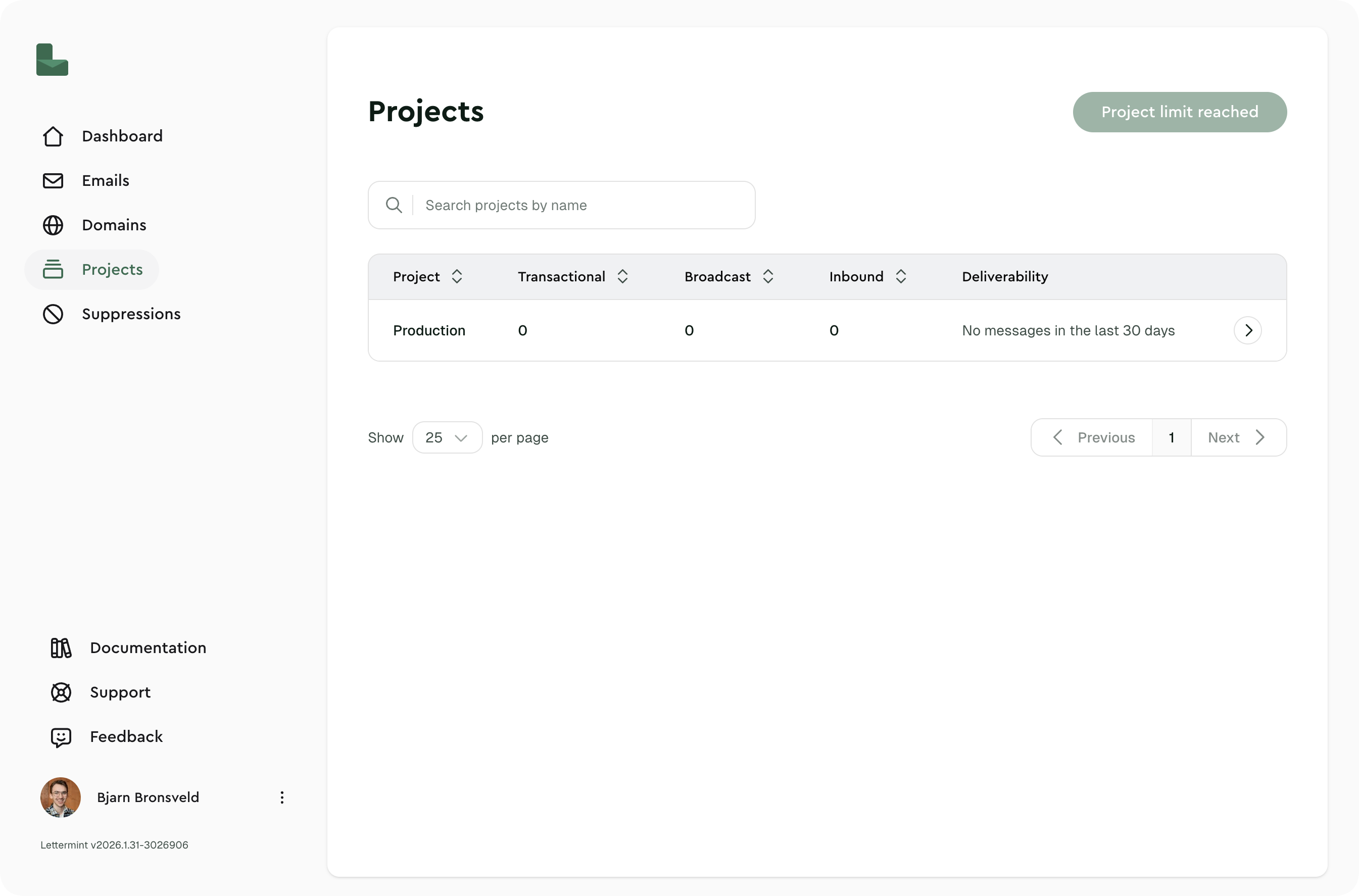
Navigate to projects
Open your team dashboard and click Projects in the sidebar.
Select your project
Click on the project you want to use.
Create or copy a project API token
Go to API Tokens, create a token, and copy the value when it is shown. Project API tokens start with lm_.
Keep Project API tokens secure. Never commit them to version control or expose them in client-side code.
See Project API tokens for creation, rotation, logs, and revocation details.
Access control
Project access combines two settings:
- A member's role defines their project permissions, such as viewing messages or managing routes.
- Their project access applies those permissions to all current and future projects, or to a selected set of projects.
Owners always have access to every project. Other members can have all-project access, selected-project access, or no project access for a team-only role.
See Project access for the complete model and where assignments are managed.
Next steps
- Routes. Configure route types and settings
- Project access. Control which members can work with a project
- Project API tokens. Manage sending credentials
- Inbound Mail. Receive emails with webhooks
- Bounce and complaint forwarding. Forward delivery failures and spam complaints by email
- Webhooks. Get delivery events through webhooks