

Team roles
A role defines what a team member can do. Project access is assigned separately and determines where project permissions apply.
Code
System roles
Every team starts with three system roles.
Owner
Full access to the team and every project. Every team must have at least one Owner.
Admin
All delegable permissions. Project access can include all projects or a selected set.
Member
The standard permissions for working with projects, routes, domains, messages, and suppressions.
System roles are managed by Lettermint and cannot be edited or deleted. You can duplicate Admin or Member when you need an editable starting point. Owner cannot be duplicated.
Team and project permissions
Roles contain two types of permission.
| Scope | Applies to | Examples |
|---|---|---|
| Team-wide | The entire team, regardless of project access | Billing, team security, members, roles, support, Team API tokens |
| Project | Only projects included in the member's project access | Messages, statistics, routes, domains, webhooks, Project API tokens |
Team-wide permissions are never narrowed by project access. A member with Manage billing and no project access can manage billing without seeing messages, suppressions, or project settings.
Project permissions apply uniformly to every project in the assignment. If a role can view messages and manage routes, those permissions apply to each project the member can access.
Member roles control access in the Lettermint dashboard. Team API tokens use a separate ability system for programmatic access.
Create a custom role
- Go to Manage team → Roles.
- Click Create role.
- Enter a name and optional description.
- Select the team-wide and project permissions the role needs.
- Click Create role.
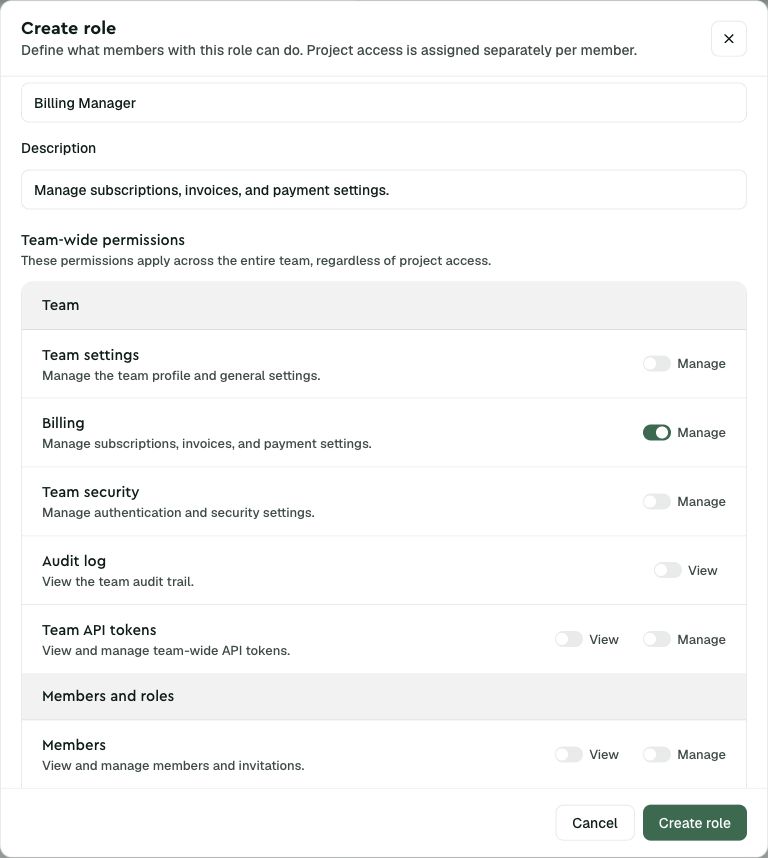
Lettermint includes required read permissions automatically in the editor. For example, managing routes also requires permission to view routes.
Duplicate a role
Duplicating creates an editable custom role with the same permissions.
- Open Manage team → Roles.
- Open the actions menu for Admin, Member, or a custom role.
- Select Duplicate.
- Choose a unique name and save the role.
Use duplication when an existing role is close to what you need. It keeps system roles unchanged and makes the difference between roles easier to review.
Delete a role
Deleting a custom role is permanent.
- If the role has no assignments, it is deleted immediately after confirmation.
- If members, invitations, or SCIM groups use the role, choose a replacement role first.
- Replacing a role changes permissions but preserves each member's project access.
System roles cannot be deleted.
Delegation rules
Role management cannot be used to gain or grant more access than you already have.
- You can only create, edit, duplicate, or assign permissions you possess.
- You can only assign projects included in your own project access.
- You cannot use the standard assignment flow to change your own role or project access.
- Ownership changes use the dedicated Owner workflows.
These rules also apply when replacing a deleted role or mapping SCIM groups to roles.
Examples
Billing only
Create a role with Manage billing and assign no projects. The member can manage billing without access to email activity or project resources.
Support engineer
Create a role with View members, Manage support tickets, View messages, and View message content. Assign only the projects supported by that person.
The same Support Engineer role can be reused with different project access for each member.
Next steps
- Team members. Assign roles and project access
- Project access. Review who can access a project
- Team API tokens. Configure programmatic access