

Team members
Every team member has one role and one project-access assignment.
Code
See Roles for system roles, custom roles, and available permissions.
Project access
Project access controls where a role's project permissions apply.
| Assignment | Access |
|---|---|
| All projects | Every current and future project |
| Selected projects | Only the projects selected for this member |
| Selected projects with none selected | Team-wide permissions only |
Team-wide permissions continue to apply when a member has no project access. This is useful for roles such as Billing or Security that do not need email or project data.
Owners always have access to all current and future projects. Another Owner may change an Owner's role through the standard assignment form, but the final Owner is protected.
Invite a member
- Go to Manage team → Members.
- Click Invite member.
- Enter the person's email address.
- Select a role.
- Choose all projects or select individual projects.
- Click Send invite.
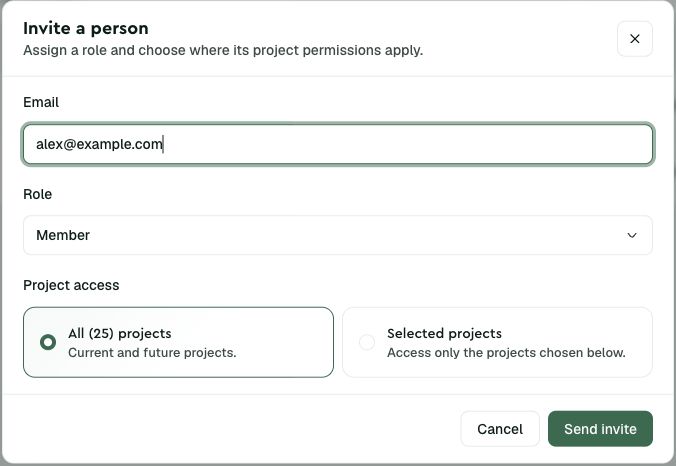
New invitations default to Member with access to all projects. The role and project assignment take effect when the invitation is accepted.
On the free Developer plan, you cannot add team members. Upgrade to a paid plan to invite additional people.
Manage an assignment
- Open Manage team → Members.
- Open the actions menu for the member.
- Select Edit access.
- Change the role, project access, or both.
- Click Save changes.
Changes take effect immediately.
Changing only the project access keeps the member's current role and permissions. It changes only which projects those project permissions apply to.
When you switch from all projects to selected projects, Lettermint initially selects every current project. Deselect the projects the member no longer needs. Future projects are not added automatically.
A member who can create projects and uses selected access is automatically assigned each project they create.
Delegating access
Members who manage other members can only delegate within their own access:
- Assigned roles cannot contain permissions they do not possess.
- Selected projects must be part of their own project access.
- A member with selected access cannot grant all-project access.
- Assignments that exceed their access remain visible but cannot be changed.
Pending invitations
Pending invitations show the selected role and project access. You can change an invitation before the person accepts it.
- Find the invitation under Pending invites.
- Click the edit action.
- Change the email address, role, project access, or any combination of these settings.
- Click Save changes.
Lettermint keeps the existing invitation link and its original creation time. A role or project access change does not send another email. If you change the email address, Lettermint sends the invitation to the new address. The old address does not receive a cancellation email.
To revoke an invitation:
- Find the invitation under Pending invites.
- Click the delete action.
- Confirm the revocation.
Revoked invitations can no longer be accepted. You can send a new invitation to the same email address.
Manage owners
Owners use the same assignment form as other members, with a few protections:
- Only an Owner can promote or demote another Owner.
- Promoting a member to Owner automatically gives them access to all projects.
- An Owner can demote themselves only when another Owner exists.
- The final Owner cannot be demoted or removed.
Owners cannot be invited or assigned through SCIM.
Remove a member
- Open Manage team → Members.
- Open the actions menu for the member.
- Select Remove.
- Confirm the removal.
The member immediately loses access to the team and its projects.
Next steps
- Roles. Create reusable permission sets
- Project access. Review effective access from a project
- SCIM. Provision members from an identity provider