# Team members
Lettermint teams allow you to collaborate with colleagues on email projects. Each team member has a role that determines what they can access and modify.
## Understanding roles
Lettermint has two roles with distinct permission levels:
Full administrative access including billing, team settings, and member management. Every team must have at least one owner.
Access to core features like sending emails, managing projects, domains, and routes. Cannot access billing or team settings.
:::info
Only **Owners** can manage team members, access billing, or modify team settings.
:::
## Invite team members
To invite someone to your team:
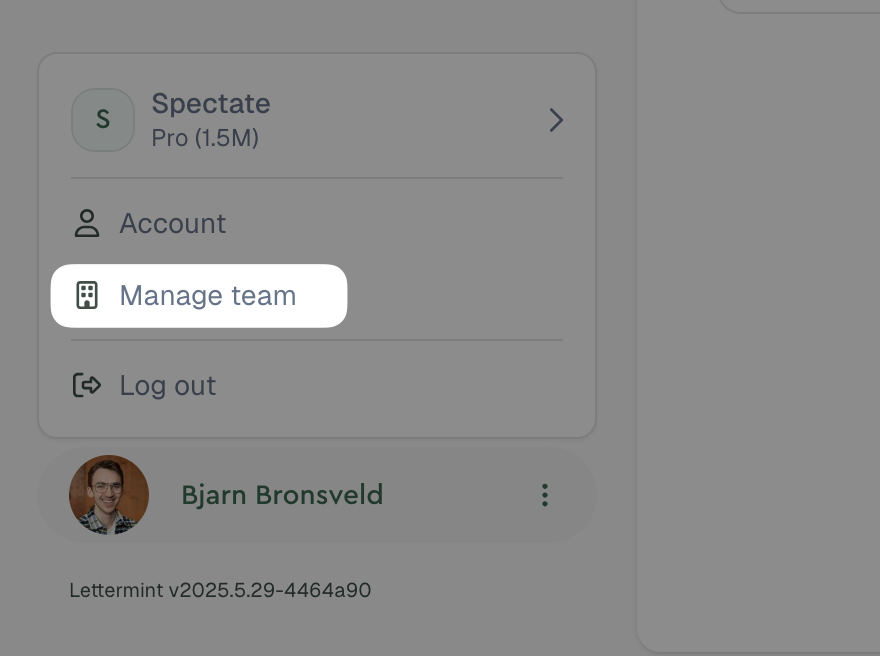
1. Go to **Manage team** → **Members**
2. Click **Add person** in the top right
3. Enter their email address and select a role
4. Click **Send invitation**
 The invitee will receive an email with a link to join your team. If they don't have a Lettermint account, they'll be prompted to create one first.
:::note
On the free **Developer** plan, you cannot add team members. Upgrade to any paid plan for unlimited team members.
:::
## Pending invitations
You can view and manage pending invitations from the **Members** tab. Pending invitations show the invitee's email, assigned role, and when the invitation was sent.
To revoke a pending invitation:
1. Find the invitation in the pending list
2. Click the 3-dot menu
3. Select **Revoke invitation**
Revoked invitations can no longer be accepted. You can send a new invitation to the same email address if needed.
## Change team member roles
To change a team member's role:
1. Go to **Manage team** → **Members**
2. Find the member and click the 3-dot menu
3. Select **Change role**
4. Choose the new role
Role changes take effect immediately.
:::warning
You cannot change your own role if you're the only owner. Transfer ownership to another member first, or invite a new owner.
:::
## Remove team members
To remove a team member:
1. Go to **Manage team** → **Members**
2. Find the member and click the 3-dot menu
3. Select **Remove**
4. Confirm the removal
Removed members immediately lose access to the team and all its resources.
:::warning
You cannot remove yourself if you're the only owner. Transfer ownership to another member first.
:::
## Permissions reference
The table below shows which permissions each role has:
| Permission | Owner | Member | Description |
|-----------------------|-------|--------|--------------------------------------------------|
| **Messages** | | | |
| View messages | ✅ | ✅ | View all sent messages and their status |
| Send messages | ✅ | ✅ | Send emails via API or SMTP |
| **Projects** | | | |
| View projects | ✅ | ✅ | View all team projects |
| Create/edit projects | ✅ | ✅ | Create new projects and edit existing ones |
| Delete projects | ✅ | ✅ | Permanently delete projects |
| **Routes** | | | |
| View routes | ✅ | ✅ | View email routing configurations |
| Create/edit routes | ✅ | ✅ | Create and modify email routes |
| Delete routes | ✅ | ✅ | Permanently delete routes |
| **Domains** | | | |
| View domains | ✅ | ✅ | View all team domains |
| Add/edit domains | ✅ | ✅ | Add new domains and edit existing ones |
| Delete domains | ✅ | ✅ | Permanently delete domains |
| **Webhooks** | | | |
| View webhooks | ✅ | ✅ | View webhook endpoints |
| Create/edit webhooks | ✅ | ✅ | Create and modify webhook endpoints |
| Delete webhooks | ✅ | ✅ | Permanently delete webhook endpoints |
| **Suppressions** | | | |
| View suppressions | ✅ | ✅ | View suppressed recipients |
| Add suppressions | ✅ | ✅ | Manually suppress recipients |
| Remove suppressions | ✅ | ✅ | Remove recipients from suppression list |
| **Team Members** | | | |
| View members | ✅ | ✅ | See list of team members |
| Invite members | ✅ | ❌ | Send invitations to new team members |
| Remove members | ✅ | ❌ | Remove members from the team |
| Change member roles | ✅ | ❌ | Modify roles of other team members |
| **Team Settings** | | | |
| View team settings | ✅ | ❌ | Access team configuration |
| Edit team settings | ✅ | ❌ | Modify team name, preferences, etc. |
| Delete team | ✅ | ❌ | Permanently delete the entire team |
| **Billing** | | | |
| View billing | ✅ | ❌ | View subscription and payment details |
| Manage billing | ✅ | ❌ | Change plans, update payment methods |
The invitee will receive an email with a link to join your team. If they don't have a Lettermint account, they'll be prompted to create one first.
:::note
On the free **Developer** plan, you cannot add team members. Upgrade to any paid plan for unlimited team members.
:::
## Pending invitations
You can view and manage pending invitations from the **Members** tab. Pending invitations show the invitee's email, assigned role, and when the invitation was sent.
To revoke a pending invitation:
1. Find the invitation in the pending list
2. Click the 3-dot menu
3. Select **Revoke invitation**
Revoked invitations can no longer be accepted. You can send a new invitation to the same email address if needed.
## Change team member roles
To change a team member's role:
1. Go to **Manage team** → **Members**
2. Find the member and click the 3-dot menu
3. Select **Change role**
4. Choose the new role
Role changes take effect immediately.
:::warning
You cannot change your own role if you're the only owner. Transfer ownership to another member first, or invite a new owner.
:::
## Remove team members
To remove a team member:
1. Go to **Manage team** → **Members**
2. Find the member and click the 3-dot menu
3. Select **Remove**
4. Confirm the removal
Removed members immediately lose access to the team and all its resources.
:::warning
You cannot remove yourself if you're the only owner. Transfer ownership to another member first.
:::
## Permissions reference
The table below shows which permissions each role has:
| Permission | Owner | Member | Description |
|-----------------------|-------|--------|--------------------------------------------------|
| **Messages** | | | |
| View messages | ✅ | ✅ | View all sent messages and their status |
| Send messages | ✅ | ✅ | Send emails via API or SMTP |
| **Projects** | | | |
| View projects | ✅ | ✅ | View all team projects |
| Create/edit projects | ✅ | ✅ | Create new projects and edit existing ones |
| Delete projects | ✅ | ✅ | Permanently delete projects |
| **Routes** | | | |
| View routes | ✅ | ✅ | View email routing configurations |
| Create/edit routes | ✅ | ✅ | Create and modify email routes |
| Delete routes | ✅ | ✅ | Permanently delete routes |
| **Domains** | | | |
| View domains | ✅ | ✅ | View all team domains |
| Add/edit domains | ✅ | ✅ | Add new domains and edit existing ones |
| Delete domains | ✅ | ✅ | Permanently delete domains |
| **Webhooks** | | | |
| View webhooks | ✅ | ✅ | View webhook endpoints |
| Create/edit webhooks | ✅ | ✅ | Create and modify webhook endpoints |
| Delete webhooks | ✅ | ✅ | Permanently delete webhook endpoints |
| **Suppressions** | | | |
| View suppressions | ✅ | ✅ | View suppressed recipients |
| Add suppressions | ✅ | ✅ | Manually suppress recipients |
| Remove suppressions | ✅ | ✅ | Remove recipients from suppression list |
| **Team Members** | | | |
| View members | ✅ | ✅ | See list of team members |
| Invite members | ✅ | ❌ | Send invitations to new team members |
| Remove members | ✅ | ❌ | Remove members from the team |
| Change member roles | ✅ | ❌ | Modify roles of other team members |
| **Team Settings** | | | |
| View team settings | ✅ | ❌ | Access team configuration |
| Edit team settings | ✅ | ❌ | Modify team name, preferences, etc. |
| Delete team | ✅ | ❌ | Permanently delete the entire team |
| **Billing** | | | |
| View billing | ✅ | ❌ | View subscription and payment details |
| Manage billing | ✅ | ❌ | Change plans, update payment methods |