# Routes
## What are Routes?
Routes define how emails are processed within your project. Each route type is optimized for specific email use cases and comes with tailored features.
## Route Types
### Transactional Routes
Transactional routes are designed for critical, one-to-one emails triggered by user actions.
**Use cases:**
- Password reset emails
- Order confirmations
- Account verification emails
- Shipping notifications
- Two-factor authentication codes
**Features:**
- High priority delivery
- Dedicated infrastructure not shared with marketing campaigns
**Best practices:**
- Use a dedicated transactional route for critical emails
- Never include marketing content in transactional emails
- Monitor delivery rates closely
### Broadcast Routes
Broadcast routes are optimized for one-to-many email campaigns sent to multiple recipients.
**Use cases:**
- Marketing newsletters
- Product announcements
- Weekly digests
- Promotional campaigns
- Community updates
**Features:**
- Built-in unsubscribe handling
- Hosted unsubscribe pages (can be disabled on higher plans)
- Bulk sending optimization
:::info
The hosted unsubscribe feature automatically adds an unsubscribe link to broadcast emails and manages the unsubscribe page. Disabling this requires you to handle unsubscribes yourself.
In order to be able to change this setting, contact support. This option is only granted to trusted senders.
:::
### Inbound Routes
Inbound routes allow you to receive emails and process them via webhooks. Perfect for support systems, email-based workflows, and automated processing.
**Use cases:**
- Support ticket systems
- Email-to-task conversions
- Reply tracking
- Email parsing and automation
- Customer feedback collection
**Features:**
- Unique email address per route
- Custom domain support with MX records
- Configurable spam filtering
- Full email parsing (headers, body, attachments)
- Webhook delivery with complete email data
- Subaddress support (e.g., `user+tag@example.com`)
:::info
Inbound routes are available on Starter plans and above. See the [Inbound Mail guide](/platform/projects-and-routes/inbound-mail) for detailed setup instructions.
:::
## Default Routes
Each project has a **default route** that is used when you send emails without specifying a route in your API request. This simplifies your integration by allowing you to omit the `route` parameter for common use cases.
### How Default Routes Work
When you create a new project, Lettermint automatically creates a transactional route called "outgoing" and sets it as the default. You can change the default route at any time via the Team API.
**When you send an email:**
- **With `route` parameter**: Uses the specified route
- **Without `route` parameter**: Uses the project's default route
### Changing the Default Route
Use the [Team API](/platform/teams/team-api/introduction) to update a route's default status:
```bash
curl -X PUT "https://api.lettermint.co/v1/routes/{routeId}" \
-H "Authorization: Bearer lm_team_xxx" \
-H "Content-Type: application/json" \
-d '{"is_default": true}'
```
Setting a route as default automatically removes the default flag from the previous default route.
**Requirements:**
- The route must belong to the project
- Only **transactional** and **broadcast** routes can be set as default
- Inbound routes cannot be set as default (they receive emails, not send them)
### Viewing the Default Route
When listing routes, check the `is_default` field on each route:
```json
{
"data": [
{
"id": "550e8400-e29b-41d4-a716-446655440000",
"name": "Outgoing",
"slug": "outgoing",
"type": "transactional",
"is_default": true
},
{
"id": "661f9511-f30c-52e5-b827-557766551111",
"name": "Marketing",
"slug": "marketing",
"type": "broadcast",
"is_default": false
}
]
}
```
The default route ID is also included in project API responses as `default_route_id`.
## Route Constraints
Routes have certain constraints to maintain project integrity:
- **Route type is immutable**: Once created, a route's type (transactional, broadcast, inbound) cannot be changed. Create a new route if you need a different type.
- **Cannot delete the default route**: You must set another route as default before deleting the current default route.
- **Cannot delete the last route**: Every project must have at least one route. You cannot delete a project's only remaining route.
- **Protected slug**: The `outgoing` slug is reserved for the default transactional route created with new projects and cannot be used for other routes.
## Managing Routes
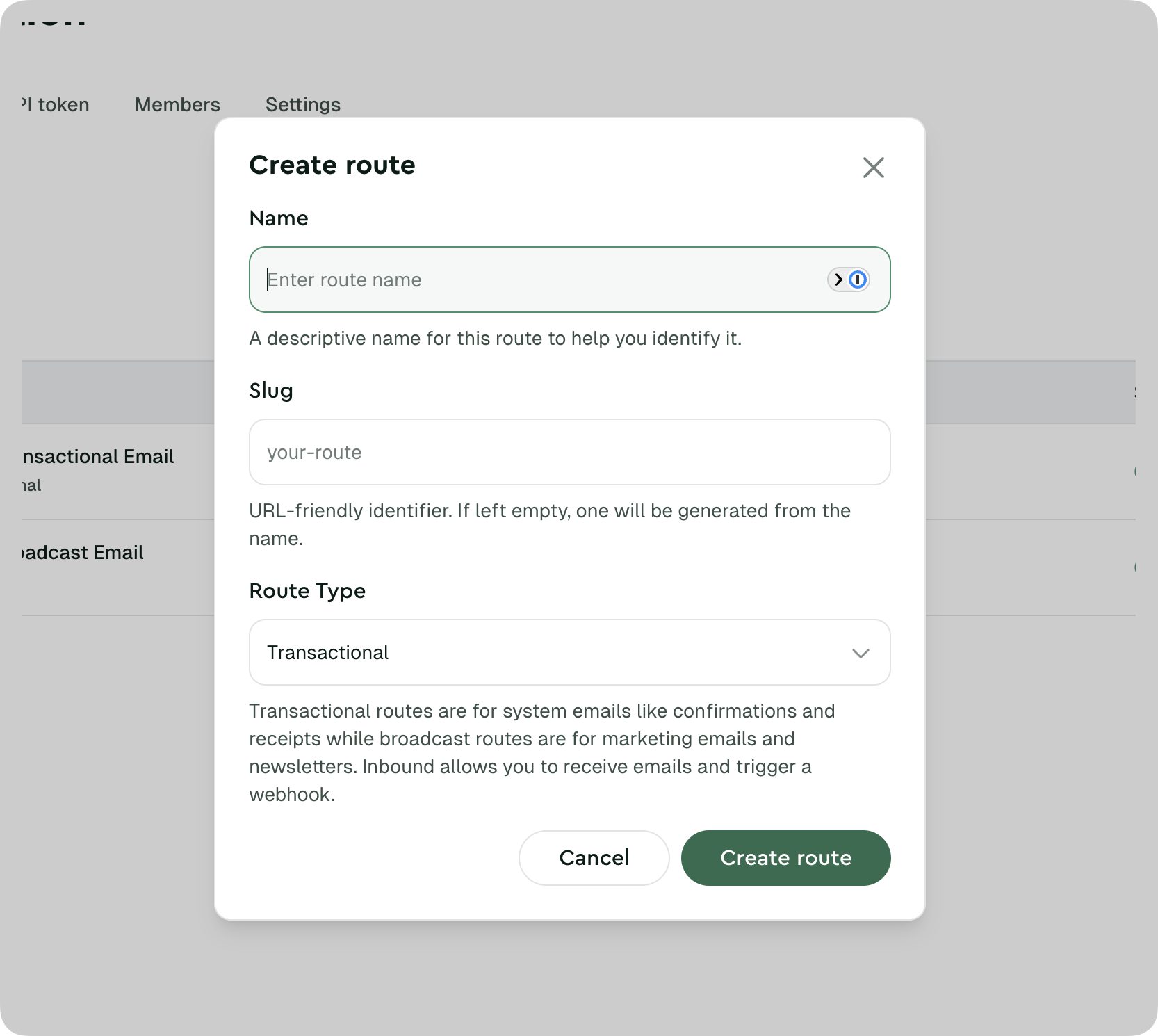
### Creating a Route
1. Navigate to your project in the dashboard
2. Go to the **Routes** section
3. Click **Create Route**
4. Choose your route type
5. Configure route settings
6. Save your route
### Route Settings
Different route types have different available settings:
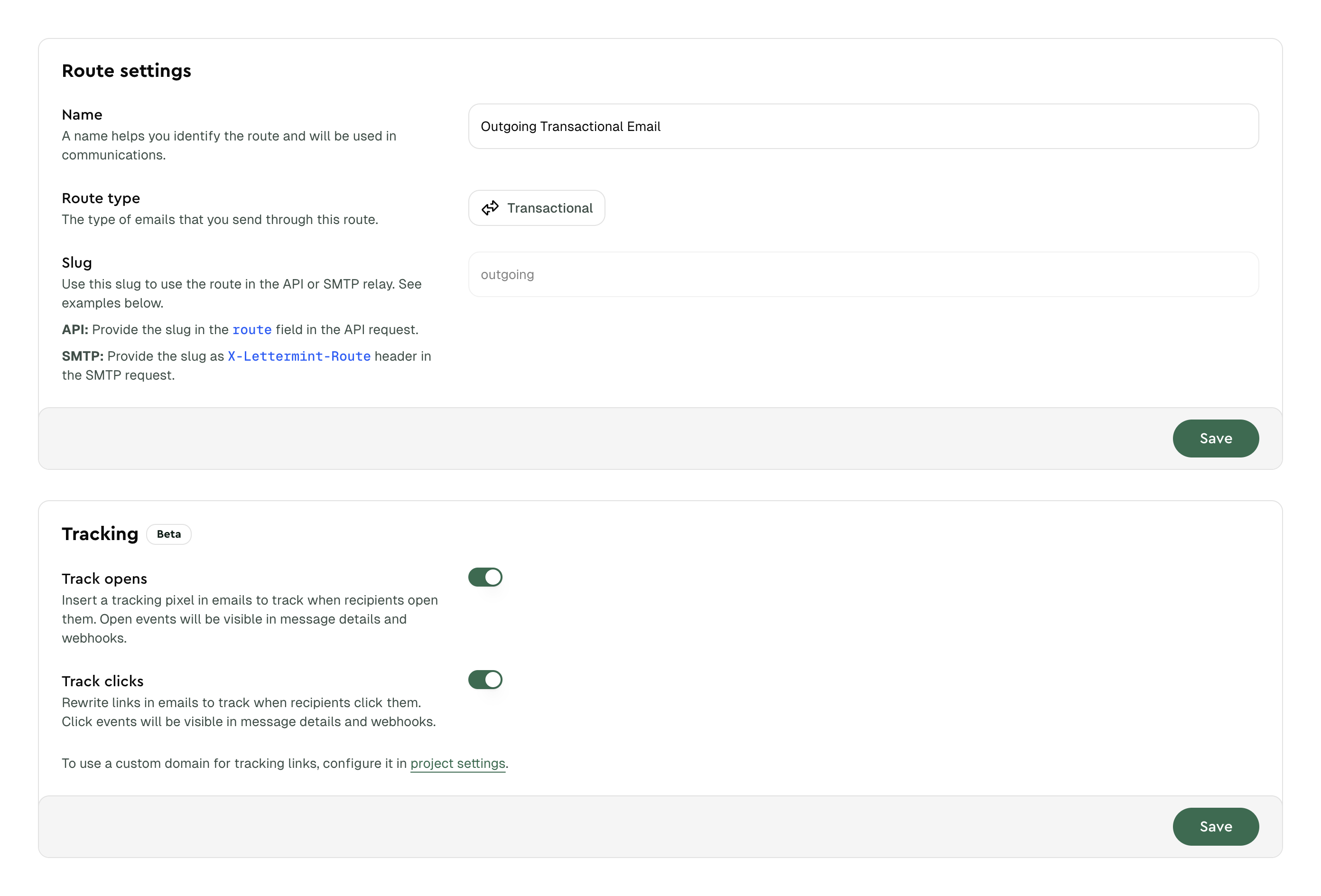
**All Routes:**
- Name and description
- Webhook configuration
- Suppression list management
**Transactional & Broadcast Routes:**
- Open tracking - Track when recipients open emails
- Click tracking - Track when recipients click links
:::info
Email tracking is available on paid plans. See the [Tracking documentation](/platform/emails/tracking/introduction) for setup details and bot detection information.
:::
**Broadcast Routes:**
- Hosted unsubscribe settings
**Inbound Routes:**
- Spam threshold configuration
- Attachment delivery mode (inline or URL)
- Custom domain setup
See the [Inbound Mail guide](/platform/projects-and-routes/inbound-mail#spam-filtering) for detailed configuration of inbound-specific settings.
### Webhooks per Route
Each route can have its own webhook endpoints to receive delivery events:
- **Transactional/Broadcast**: Receive `message.sent`, `message.delivered`, `message.bounced`, etc.
- **Inbound**: Receive `message.inbound` events with full email content
See the [Webhooks documentation](/platform/webhooks/introduction) for configuration details.
### Suppression Lists
Routes maintain suppression lists to prevent sending to problematic recipients:
- **Hard bounced addresses** - Automatically added when delivery permanently fails
- **Spam complainers** - Automatically added when recipients mark emails as spam
- **Manually suppressed** - Recipients you explicitly add to prevent sending
**Suppression scope hierarchy:**
| Scope | Applies to | Use case |
|-------|-----------|----------|
| **Route-level** | Single route only | Unsubscribes from specific email types |
| **Project-level** | All routes in project | Customer-wide unsubscribes |
| **Team-level** | All projects and routes | Global compliance suppressions |
Higher-level suppressions take precedence—a team-level suppression blocks sending across all projects, regardless of route-level settings.
## Choosing the Right Route Type
- User triggered
- Time-sensitive
- Mission-critical
- Account-related
- Marketing content
- Multiple recipients
- Campaigns
- Newsletters
- Receiving emails
- Support systems
- Reply processing
- Email automation
:::warning
**Don't mix email types!** Using a transactional route for marketing or vice versa can harm deliverability and violate anti-spam regulations.
:::
## Next Steps
- [**Set up Inbound Mail**](/platform/projects-and-routes/inbound-mail) - Configure inbound email routing
- [**Configure Webhooks**](/platform/webhooks/introduction) - Receive delivery events
- [**Manage Domains**](/platform/domains/introduction) - Set up verified sending domains
- [**Enable Email Tracking**](/platform/emails/tracking/introduction) - Track opens and clicks on your routes